> For the complete documentation index, see [llms.txt](https://ursus-ecom.gitbook.io/arctos-theme/llms.txt). Markdown versions of documentation pages are available by appending `.md` to page URLs; this page is available as [Markdown](https://ursus-ecom.gitbook.io/arctos-theme/theme-settings/colors.md).

# Colors

Colors settings define your store's palette: the background, text, button, and accent colors that appear throughout your storefront.

### 1. How it works

**Colors** in **Theme settings** let you save a set of colors under a name, then reuse it across your store. Think of them as a library of palettes. Whenever you need a section to match a certain look, just pick the scheme and all the colors slot in.

{% stepper %}
{% step %}
In the theme editor, click **Theme settings > Colors**.
{% endstep %}

{% step %}
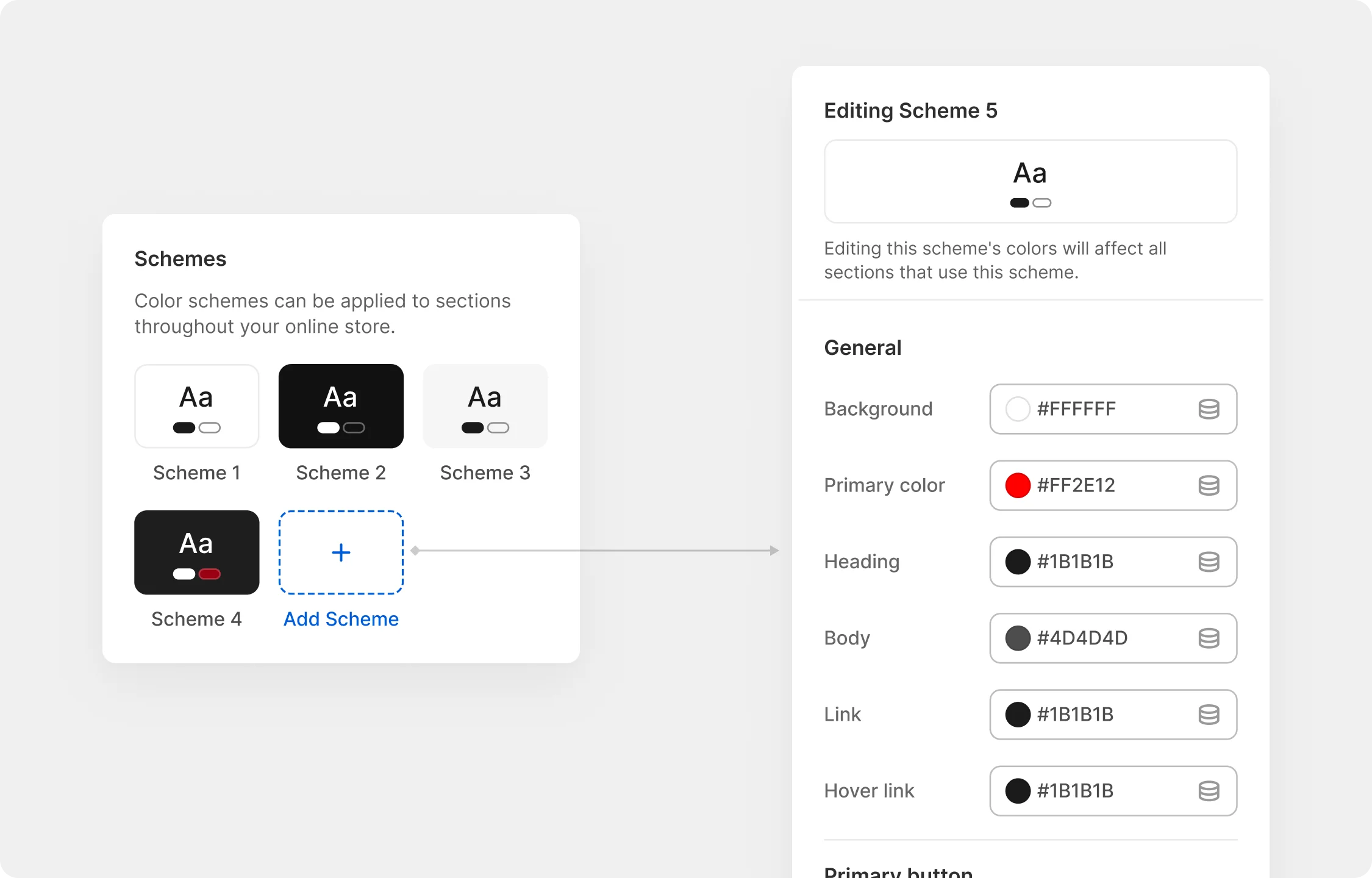
Under [Schemes](#id-2.-color-schemes), you'll see a list of your existing schemes. Select any scheme to edit it, or click **Add Scheme** to create a new one.

<figure><img src="https://1411897219-files.gitbook.io/~/files/v0/b/gitbook-x-prod.appspot.com/o/spaces%2FP6Y96SO1y456EU9GTaCh%2Fuploads%2Fgit-blob-ada63abef7e4019ff981f1066c4a641936869298%2Fcolors-schemes.webp?alt=media" alt=""><figcaption></figcaption></figure>
{% endstep %}

{% step %}
Set your [Default color scheme](#id-3.-default-color-scheme)**.** Every new section you add to your store automatically inherits this scheme.

<figure><img src="https://1411897219-files.gitbook.io/~/files/v0/b/gitbook-x-prod.appspot.com/o/spaces%2FP6Y96SO1y456EU9GTaCh%2Fuploads%2Fgit-blob-15a67e64322f4933d65b8123bec5cbaa58177613%2Fcolors-default-scheme.webp?alt=media" alt=""><figcaption></figcaption></figure>
{% endstep %}

{% step %}
Set your [Page background](#id-4.-page-background) color.
{% endstep %}

{% step %}
**Save** the changes.
{% endstep %}
{% endstepper %}

{% hint style="info" %}
By default, every section and block on your store uses the default scheme automatically.

If you want a specific section to look different (for example, a dark banner on an otherwise light page), you can easily change it:

1\. Open that specific section in the editor.

2\. Under the **Style** settings category, turn off **Inherit color scheme**.

3\. Pick a different scheme from the list.

Only that section will change; everything else stays exactly as it is.
{% endhint %}

### 2. Color schemes

When you open or create a scheme, you'll see three groups of color settings: **General**, **Primary button**, and **Secondary button**. Each group controls a different part of how your sections look.

#### 2.1. General

The General group controls the foundational colors of your store: its background, text, links, and accent highlights.

<figure><img src="https://1411897219-files.gitbook.io/~/files/v0/b/gitbook-x-prod.appspot.com/o/spaces%2FP6Y96SO1y456EU9GTaCh%2Fuploads%2Fgit-blob-f9bbc68d40f0b03f5c4e8b25270cb360ff77ee23%2Fcolors-general.webp?alt=media" alt=""><figcaption></figcaption></figure>

<table><thead><tr><th width="180.4765625">Setting</th><th>What it affects</th></tr></thead><tbody><tr><td><strong>Background</strong></td><td>The fill color behind section content</td></tr><tr><td><strong>Primary color</strong></td><td>The main accent color for your store, typically your brand's primary color. Used for highlights and key UI elements throughout the scheme.</td></tr><tr><td><strong>Heading</strong></td><td>Color applied to all heading text within the section</td></tr><tr><td><strong>Body</strong></td><td>Color applied to body and paragraph text</td></tr><tr><td><strong>Highlight</strong></td><td>Color applied to highlighted text segments within headings, text blocks, and promotional components using this scheme</td></tr><tr><td><strong>Link</strong></td><td>Default color of inline text links</td></tr><tr><td><strong>Hover link</strong></td><td>Color of inline text links on hover</td></tr></tbody></table>

{% hint style="info" %}
**Primary color** is your most versatile accent slot.

* The most common pattern is to set it as the **hover background on your primary button**. The button shifts to your accent color on hover without needing to manage a separate value.
* You can also use it as the **hover border on your secondary button** for a consistent highlight across both CTAs, though this depends on how your secondary button is styled.
  {% endhint %}

#### 2.2. Primary button

The Primary button group controls the appearance of your main call-to-action buttons: the ones you want shoppers to notice and click first.

<figure><img src="https://1411897219-files.gitbook.io/~/files/v0/b/gitbook-x-prod.appspot.com/o/spaces%2FP6Y96SO1y456EU9GTaCh%2Fuploads%2Fgit-blob-62fb4fbbe56189429ba7d8c298d347c7ae15d915%2Fcolors-primary-1.webp?alt=media" alt=""><figcaption></figcaption></figure>

<table><thead><tr><th width="180.01953125">Setting</th><th>What it affects</th></tr></thead><tbody><tr><td><strong>Background</strong></td><td>Fill color of the button in its default state</td></tr><tr><td><strong>Hover background</strong></td><td>Fill color when the cursor hovers over the button</td></tr><tr><td><strong>Text</strong></td><td>Label color in its default state</td></tr><tr><td><strong>Hover text</strong></td><td>Label color on hover</td></tr><tr><td><strong>Borders</strong></td><td>Border color in its default state</td></tr><tr><td><strong>Hover borders</strong></td><td>Border color on hover</td></tr></tbody></table>

For a flat, solid-fill button with no visible outline, set **Borders** and **Hover borders** to the same color as **Background** and **Hover background**, respectively. When the border matches the fill, the stroke becomes invisible and the button reads as a clean solid block.

<figure><img src="https://1411897219-files.gitbook.io/~/files/v0/b/gitbook-x-prod.appspot.com/o/spaces%2FP6Y96SO1y456EU9GTaCh%2Fuploads%2Fgit-blob-a715ddcf770d4582b2cfe5f0cde2cd635c8002d0%2Fcolors-primary-2.webp?alt=media" alt=""><figcaption></figcaption></figure>

#### 2.3. Secondary button

The Secondary button group styles a lower-priority action, typically an outline or ghost button used alongside the primary CTA. It follows the same structure as the Primary button group.

<figure><img src="https://1411897219-files.gitbook.io/~/files/v0/b/gitbook-x-prod.appspot.com/o/spaces%2FP6Y96SO1y456EU9GTaCh%2Fuploads%2Fgit-blob-4f40cf4d05e2f6439edfb6dd835ca3c81f559a18%2Fcolors-secondary.webp?alt=media" alt=""><figcaption></figcaption></figure>

<table><thead><tr><th width="179.72265625">Setting</th><th>What it affects</th></tr></thead><tbody><tr><td><strong>Background</strong></td><td>Fill color of the button in its default state</td></tr><tr><td><strong>Hover background</strong></td><td>Fill color when the cursor hovers over the button</td></tr><tr><td><strong>Text</strong></td><td>Label color in its default state</td></tr><tr><td><strong>Hover text</strong></td><td>Label color on hover</td></tr><tr><td><strong>Borders</strong></td><td>Border color in its default state</td></tr><tr><td><strong>Hover borders</strong></td><td>Border color on hover</td></tr></tbody></table>

### 3. Default color scheme

When you add a new section or block to your store, it automatically picks up the default scheme. If you switch the default to a different scheme, all sections that haven't been manually assigned a scheme will update to match.

<figure><img src="https://1411897219-files.gitbook.io/~/files/v0/b/gitbook-x-prod.appspot.com/o/spaces%2FP6Y96SO1y456EU9GTaCh%2Fuploads%2Fgit-blob-15a67e64322f4933d65b8123bec5cbaa58177613%2Fcolors-default-scheme.webp?alt=media" alt=""><figcaption></figcaption></figure>

### 4. Page background

The page background is the color that shows through wherever no section covers it (such as the gaps between sections, or the edges of the page on wider screens).

To set it, click the **Page background** swatch. You have two options:

* **CSS color or gradient** Type directly into the CSS Code field. Use a hex value for a flat color (e.g. `#F5F5F5`) or a CSS gradient value for a gradient (e.g. `linear-gradient(135deg, #F5F5F5 0%, #E0E0E0 100%)`).

<figure><img src="https://1411897219-files.gitbook.io/~/files/v0/b/gitbook-x-prod.appspot.com/o/spaces%2FP6Y96SO1y456EU9GTaCh%2Fuploads%2Fgit-blob-7e055f9b48551d57be1762a16d2fe4db425c8fc3%2Fcolors-page-background-css.webp?alt=media" alt=""><figcaption></figcaption></figure>

* **Gradient picker** Switch the dropdown from CSS to **Gradient** to use Shopify's built-in gradient editor. Select one of the preset gradients as a starting point, then adjust the colors, angle, and stops using the visual controls.

<figure><img src="https://1411897219-files.gitbook.io/~/files/v0/b/gitbook-x-prod.appspot.com/o/spaces%2FP6Y96SO1y456EU9GTaCh%2Fuploads%2Fgit-blob-e2aa0eb30e3ba13b909e2bb0d16fd1ff8bc481cc%2Fcolors-page-background-gradient.webp?alt=media" alt=""><figcaption></figcaption></figure>

{% hint style="info" %}
The gradient picker is the easier option if you're not comfortable writing CSS. Start from a preset that's close to what you want, then tweak from there.
{% endhint %}

### 5. Choosing colors that work for your brand and your shoppers

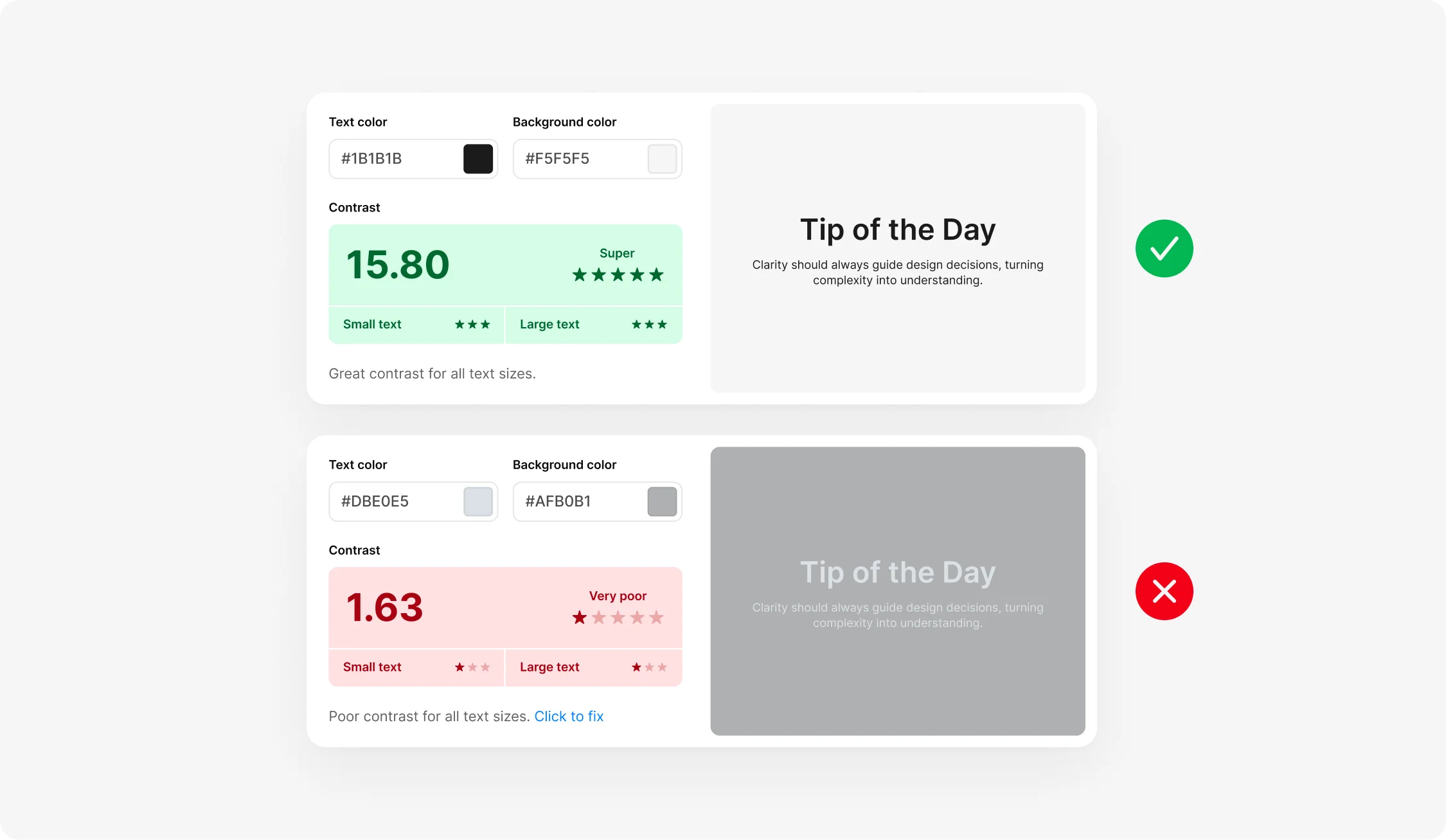
Before finalizing any scheme, check the contrast ratio between your text and its background. The standard for readable body copy is a ratio of **4.5:1** (WCAG AA). For large headings, 3:1 is acceptable, but 4.5:1 is safer.

Use [Coolors Contrast Checker](https://coolors.co/contrast-checker) to test any text/background pair before committing. Paste in your hex values and verify the result for both normal text and large text.

<figure><img src="https://1411897219-files.gitbook.io/~/files/v0/b/gitbook-x-prod.appspot.com/o/spaces%2FP6Y96SO1y456EU9GTaCh%2Fuploads%2Fgit-blob-929bb05d432d4c7d35c5393545d5c9e79bd1d93d%2Fcolors-contrast.webp?alt=media" alt=""><figcaption></figcaption></figure>

Apply the same check to each of these pairs:

<details open>

<summary>General colors</summary>

* [ ] Body on Background
* [ ] Heading on Background
* [ ] Primary color on Background
* [ ] Link on Background
* [ ] Hover link on Background

</details>

<details>

<summary>Primary button colors</summary>

* [ ] Text on Background
* [ ] Hover text on Hover background

</details>

<details>

<summary>Secondary button colors</summary>

* [ ] Text on Background
* [ ] Hover text on Hover background

</details>

<details>

<summary>Button background on section background</summary>

* [ ] Primary button Background on section Background
* [ ] Secondary button Background on section Background

</details>