> For the complete documentation index, see [llms.txt](https://ursus-ecom.gitbook.io/arctos-theme/llms.txt). Markdown versions of documentation pages are available by appending `.md` to page URLs; this page is available as [Markdown](https://ursus-ecom.gitbook.io/arctos-theme/theme-settings/typography.md).

# Typography

Control fonts, sizes, spacing, and weight for every text element across your store.

{% hint style="info" %}
**Where to find it:** In the theme editor (**Customize**), go to **Theme settings > Typography**.
{% endhint %}

### 1. How it works

{% stepper %}
{% step %}
**Choose your font families**

Start with the [Font family](#id-2.-font-family) section. You pick one typeface for headings, one for body text, and one for highlight text. These become the foundation for everything else on your store.
{% endstep %}

{% step %}
**Fine-tune each content level**

Every content type inherits the font family you set in Step 1. This includes:

* **Headings:** [Display heading](#id-6.-display-heading), [Heading 1–6](#id-7.-heading-1-6), and [Eyebrow text](#id-8.-eyebrow-text).
* **Body & UI Text:** [Paragraph](#id-4.-paragraph), [Highlight](#id-5.-highlight), [Description](#id-9.-description), and [Label](#id-10.-label).
  {% endstep %}
  {% endstepper %}

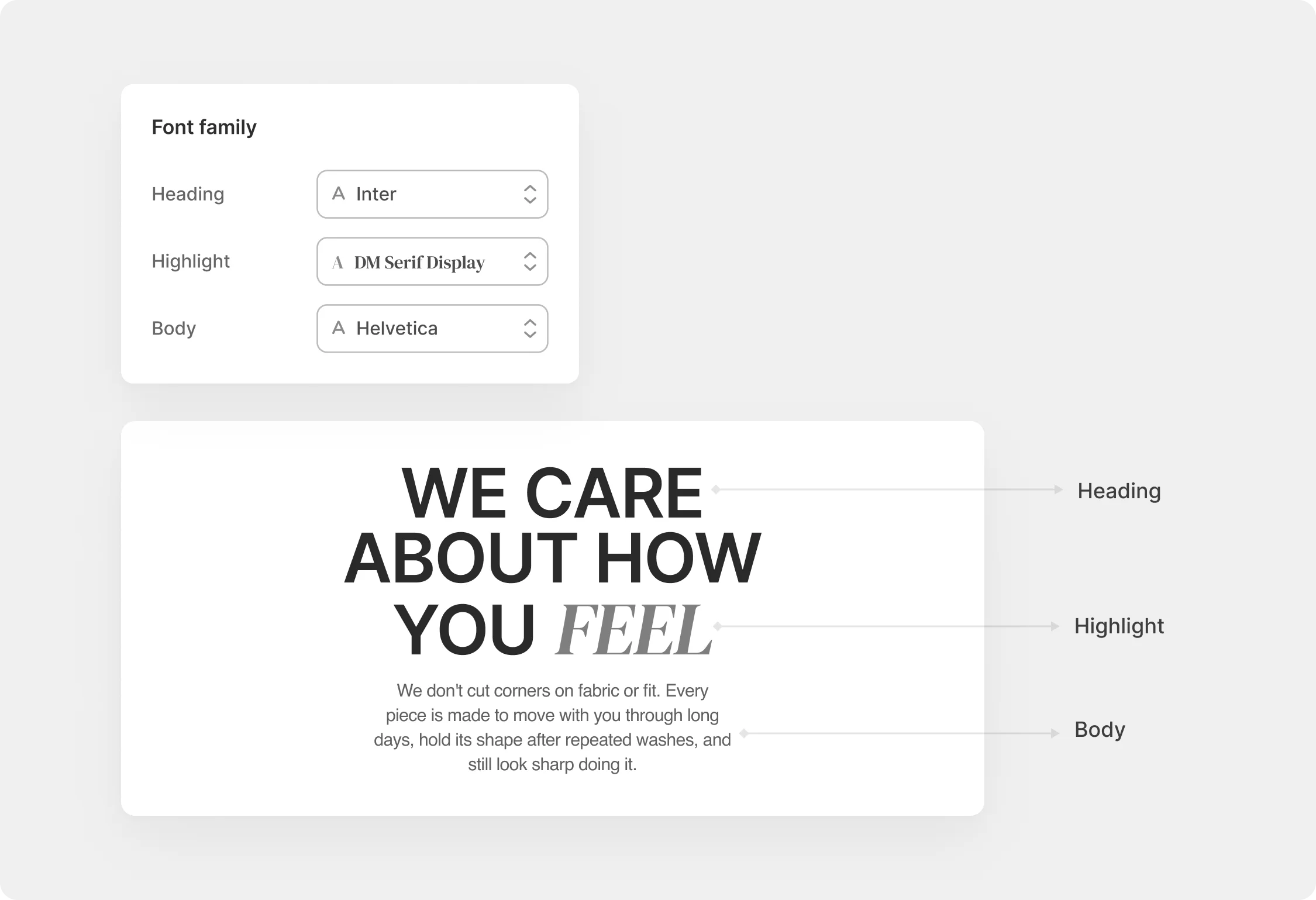
### 2. Font family

Assigns a typeface to each of the three text roles your theme uses. Every piece of text on your store pulls from one of these three families, so the fonts you choose here set the visual tone for your entire storefront. You can use the same font across all three roles for a unified look, or mix families to create contrast and hierarchy.

<figure><img src="https://1411897219-files.gitbook.io/~/files/v0/b/gitbook-x-prod.appspot.com/o/spaces%2FP6Y96SO1y456EU9GTaCh%2Fuploads%2Fgit-blob-e38f3c77a236023c442135e162a20393b8e82d41%2Ftypo%20font%20family.webp?alt=media" alt=""><figcaption></figcaption></figure>

<table><thead><tr><th width="126.9609375">Setting</th><th width="208.7734375">What it controls</th><th>How to use it</th></tr></thead><tbody><tr><td><strong>Heading</strong></td><td>H1–H6 and Display heading elements</td><td>Pick a font that reflects your brand personality. A strong heading font creates visual hierarchy without extra styling work.</td></tr><tr><td><strong>Highlight</strong></td><td>Accent text</td><td>Use the same font as Heading or Body for a clean, consistent look. Choose a contrasting font, for example, a script or serif, to make highlighted phrases stand out.</td></tr><tr><td><strong>Body</strong></td><td>Paragraph, Description, and general content text</td><td>Prioritise readability. Sans-serif fonts tend to read more clearly at small sizes on screen.</td></tr></tbody></table>

{% hint style="info" %}
If your **Heading** and **Body** fonts are the same family, use different weights to create hierarchy. For a more distinctive look, pairing a serif heading font with a sans-serif body font is a common and reliable combination.
{% endhint %}

### 3. Content levels

Your theme has 7 text types. The table below maps each one to where it appears on a typical store page. Use it as a reference while adjusting the sections that follow.

<figure><img src="https://1411897219-files.gitbook.io/~/files/v0/b/gitbook-x-prod.appspot.com/o/spaces%2FP6Y96SO1y456EU9GTaCh%2Fuploads%2Fgit-blob-8d6a7abe759f0ea2e6bfb38356a23153ff322138%2Ftypo%20content%20levels.webp?alt=media" alt=""><figcaption></figcaption></figure>

<table data-search="false"><thead><tr><th width="155.09765625">Text type</th><th>Typical use</th></tr></thead><tbody><tr><td><strong>Paragraph</strong></td><td>General body text across most pages</td></tr><tr><td><strong>Highlight</strong></td><td>Inline accent text using distinct styling within a heading to draw attention</td></tr><tr><td><strong>Display heading</strong></td><td>Hero banners and full-screen promotional sections</td></tr><tr><td><strong>Heading 1–6</strong></td><td>Page titles (H1), section headings (H2–H3), card and block headings (H4–H6)</td></tr><tr><td><strong>Eyebrow text</strong></td><td>Available only in the <a href="/arctos-theme/blocks/basic/text.md">Text</a> block, applied when you select the Eyebrow text style for a text element</td></tr><tr><td><strong>Description</strong></td><td>Small supporting text on card descriptions, notes, and captions</td></tr><tr><td><strong>Label</strong></td><td>Input labels on forms</td></tr></tbody></table>

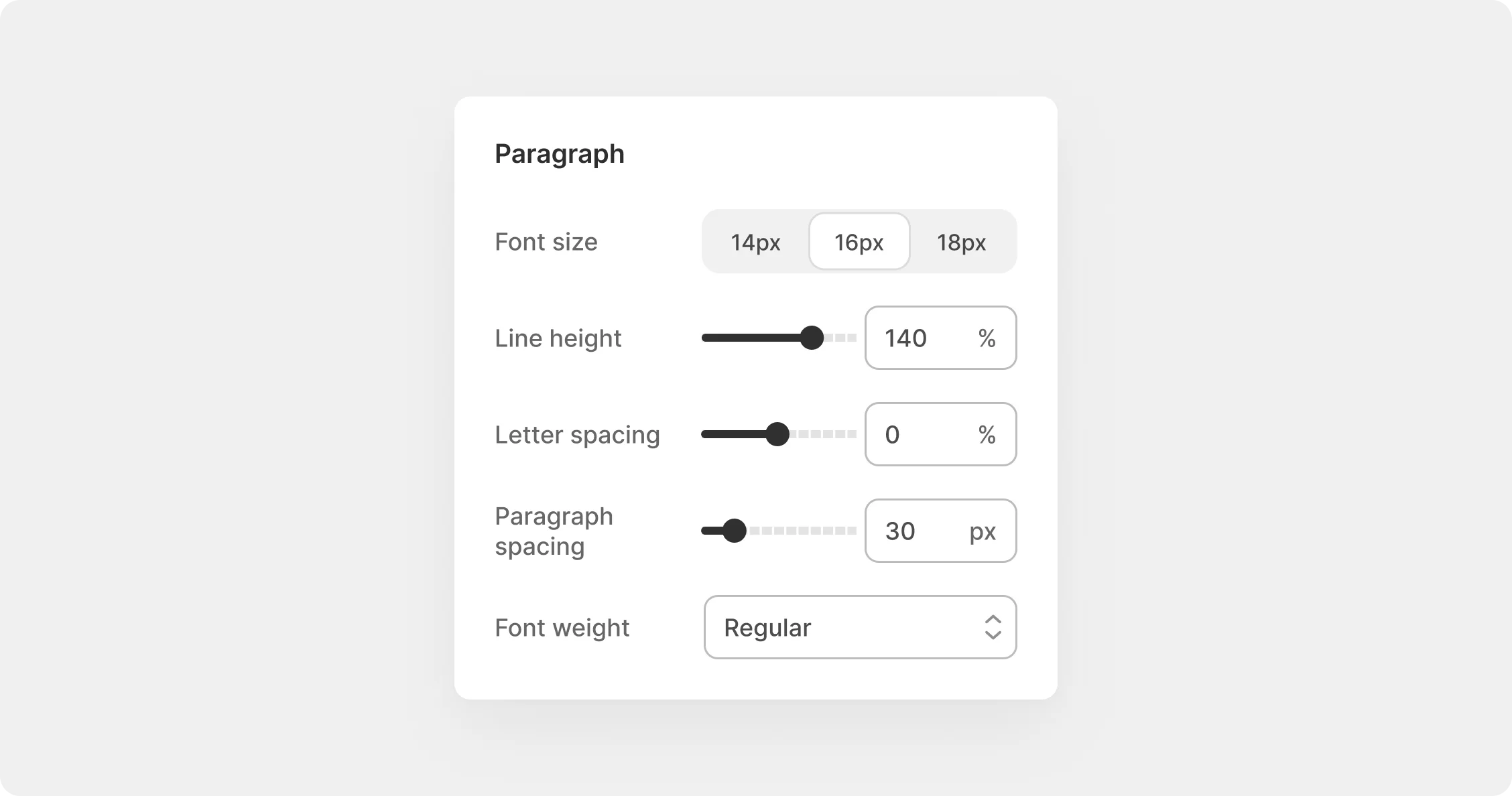
### 4. Paragraph

Controls the default styling for general body text across your store. Because Paragraph is the most widely used text type, changes here have the broadest visual impact.

<figure><img src="https://1411897219-files.gitbook.io/~/files/v0/b/gitbook-x-prod.appspot.com/o/spaces%2FP6Y96SO1y456EU9GTaCh%2Fuploads%2Fgit-blob-69fd47e92f090f63752288f8ab88f19ecc96afb0%2Ftypo%20paragraph.webp?alt=media" alt=""><figcaption></figcaption></figure>

<table><thead><tr><th width="136.95703125">Setting</th><th width="173.09375">Options / Range</th><th width="424.171875">What it does</th></tr></thead><tbody><tr><td><strong>Font size</strong></td><td><ul><li>14px</li><li>16px</li><li>18px</li></ul></td><td>The base font size for paragraphs and body text</td></tr><tr><td><strong>Line height</strong></td><td>80% to 160%</td><td>Vertical spacing between lines, as a percentage of font size. Higher values open up dense blocks of text and improve readability</td></tr><tr><td><strong>Letter spacing</strong></td><td>-20% to +20%</td><td>Space between individual characters. 0 is the default optimised by the font designer; increase to open up tight text, decrease to tighten wide-spaced fonts</td></tr><tr><td><strong>Paragraph spacing</strong></td><td>0–100px</td><td>Vertical space added between blocks of text</td></tr><tr><td><strong>Font weight</strong></td><td><ul><li>Regular</li><li>Medium</li><li>Semi-bold</li></ul></td><td>Thickness of body text</td></tr></tbody></table>

{% hint style="info" %}
**16px** is a safe default for body text on most screens. Drop to **14px** if your store has dense product descriptions and limited space; go to **18px** if your audience skews older or you're running a content-heavy blog.
{% endhint %}

### 5. Highlight

Controls the appearance of accent text, typically a word or short phrase that you want to visually distinguish from the surrounding text.

<figure><img src="https://1411897219-files.gitbook.io/~/files/v0/b/gitbook-x-prod.appspot.com/o/spaces%2FP6Y96SO1y456EU9GTaCh%2Fuploads%2Fgit-blob-4850b851ac60c6a84bc5b744b10462fa34e03852%2Ftypo%20highlight.webp?alt=media" alt=""><figcaption></figcaption></figure>

<table><thead><tr><th width="141.76953125">Setting</th><th width="176.67578125">Options</th><th width="409.19921875">What it does</th></tr></thead><tbody><tr><td><strong>Font style</strong></td><td><ul><li>Italic</li><li>Normal</li></ul></td><td>Whether highlighted text appears in italic or normal style</td></tr><tr><td><strong>Letter spacing</strong></td><td>-20% to +20%</td><td>Space between characters in highlighted text</td></tr><tr><td><strong>Font weight</strong></td><td><ul><li>Light</li><li>Regular</li><li>Medium</li><li>Semi-bold</li><li>Bold</li><li>Extra-bold</li></ul></td><td>Thickness of highlighted text</td></tr><tr><td><strong>Case</strong></td><td><ul><li>Normal</li><li>Uppercase</li><li>Lowercase</li><li>Capitalize</li></ul></td><td>Text capitalization for highlighted text</td></tr></tbody></table>

### 6. Display heading

Controls the style of your largest headings, used in hero banners and full-screen sections. Because display headings appear at large sizes, small spacing adjustments are more noticeable here than anywhere else on the page.

<figure><img src="https://1411897219-files.gitbook.io/~/files/v0/b/gitbook-x-prod.appspot.com/o/spaces%2FP6Y96SO1y456EU9GTaCh%2Fuploads%2Fgit-blob-844639520d653c7e52cbcba287704395ccc88685%2Ftypo%20display%20heading.webp?alt=media" alt=""><figcaption></figcaption></figure>

<table><thead><tr><th width="167.28515625">Setting</th><th width="223.98046875">Options / Range</th><th width="338.41796875">What it does</th></tr></thead><tbody><tr><td><strong>Font size</strong></td><td>80–200px</td><td>Size of display headings on desktop</td></tr><tr><td><strong>Line height</strong></td><td>80% to 160%</td><td>Vertical spacing between lines</td></tr><tr><td><strong>Letter spacing</strong></td><td>-20% to +20%</td><td>Space between characters</td></tr><tr><td><strong>Font weight</strong></td><td><ul><li>Light</li><li>Regular</li><li>Medium</li><li>Semi-bold</li><li>Bold</li><li>Extra-bold</li></ul></td><td>Thickness of display heading text</td></tr><tr><td><strong>Case</strong></td><td><ul><li>Normal</li><li>Uppercase</li><li>Lowercase</li><li>Capitalize</li></ul></td><td>Text capitalization</td></tr></tbody></table>

{% hint style="info" %}
Display headings above **120px** can overflow their containers on tablet-sized screens even when they look fine on desktop. Always enable **Custom on mobile** and preview at both tablet and phone breakpoints before publishing.
{% endhint %}

### 7. Heading 1–6

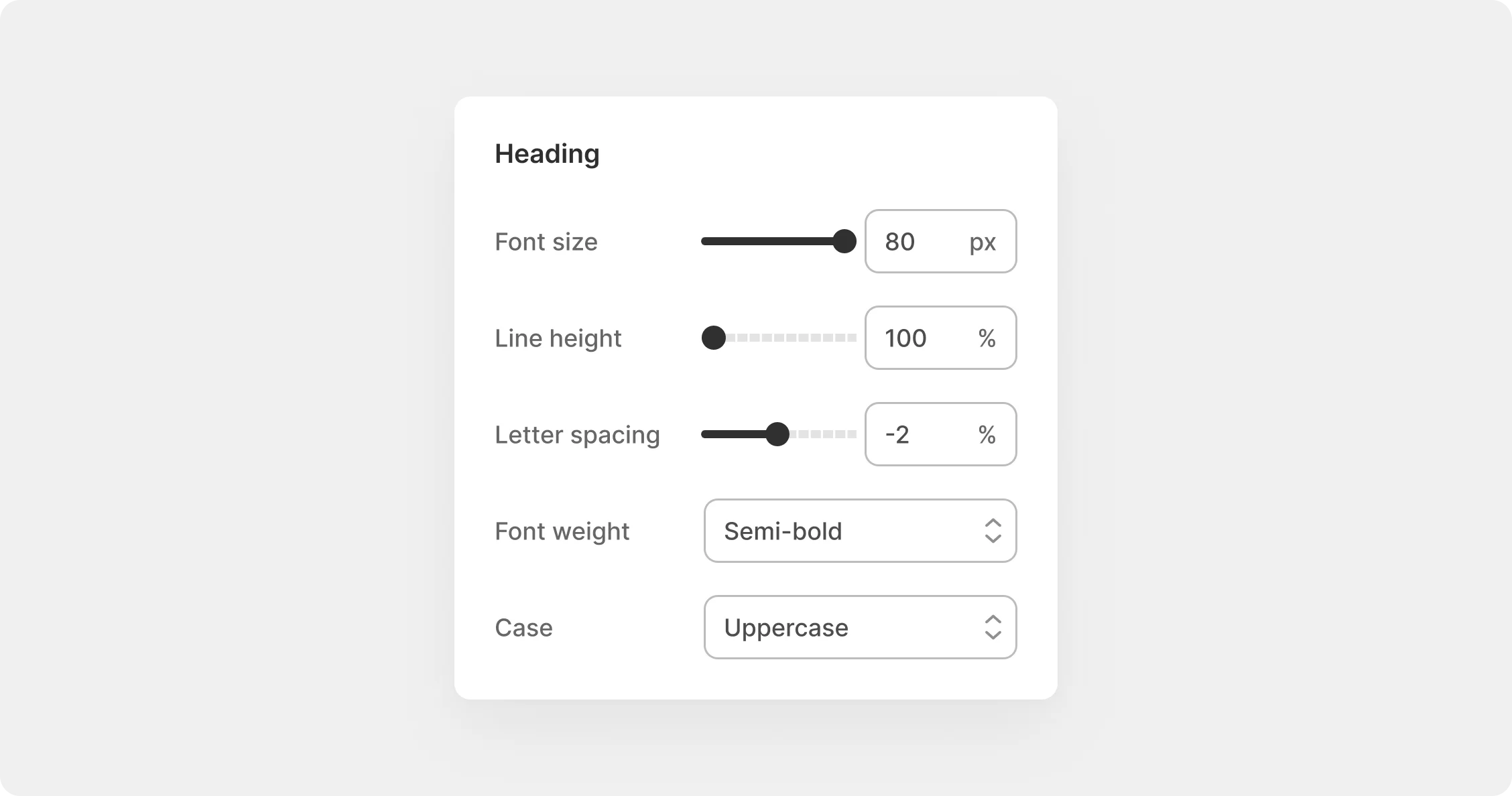
Each heading level has its own independent size and style controls. The table below shows the default values and size range for each level.

<figure><img src="https://1411897219-files.gitbook.io/~/files/v0/b/gitbook-x-prod.appspot.com/o/spaces%2FP6Y96SO1y456EU9GTaCh%2Fuploads%2Fgit-blob-75cca43d3743956d7088fb390d4a55e2f86ca1df%2Ftypo%20heading.webp?alt=media" alt=""><figcaption></figcaption></figure>

| Heading | Font size range | Default size | Default line height |
| ------- | --------------- | ------------ | ------------------- |
| H1      | 32–80px         | 80px         | 100%                |
| H2      | 32–80px         | 64px         | 100%                |
| H3      | 32–80px         | 56px         | 100%                |
| H4      | 32–80px         | 40px         | 110%                |
| H5      | 18–32px         | 32px         | 120%                |
| H6      | 18–32px         | 24px         | 130%                |

All heading levels share the same set of additional controls:

<table><thead><tr><th width="250.046875">Setting</th><th>Options / Range</th></tr></thead><tbody><tr><td><strong>Line height</strong></td><td>80% to 160%</td></tr><tr><td><strong>Letter spacing</strong></td><td>-20% to +20%</td></tr><tr><td><strong>Font weight</strong></td><td><ul><li>Light</li><li>Regular</li><li>Medium</li><li>Semi-bold</li><li>Bold</li><li>Extra-bold</li></ul></td></tr><tr><td><strong>Case</strong></td><td><ul><li>Normal</li><li>Uppercase</li><li>Lowercase</li><li>Capitalize</li></ul></td></tr></tbody></table>

### 8. Eyebrow text

A styling variant available in the [Text](/arctos-theme/blocks/basic/text.md) block. Select the Eyebrow text style within a text element to apply these settings. Most commonly used as a small label or category tag placed above a main heading.

<figure><img src="https://1411897219-files.gitbook.io/~/files/v0/b/gitbook-x-prod.appspot.com/o/spaces%2FP6Y96SO1y456EU9GTaCh%2Fuploads%2Fgit-blob-e0e7a071dc2b3f1aa2ff421a7db7b95332b312af%2Ftypo%20subheading.webp?alt=media" alt=""><figcaption></figcaption></figure>

<table><thead><tr><th width="231.92578125">Setting</th><th>Options / Range</th></tr></thead><tbody><tr><td><strong>Font family</strong></td><td><ul><li>Heading</li><li>Body</li></ul></td></tr><tr><td><strong>Font size</strong></td><td>12–32px</td></tr><tr><td><strong>Line height</strong></td><td>80% to 160%</td></tr><tr><td><strong>Letter spacing</strong></td><td>-20% to +20%</td></tr><tr><td><strong>Font weight</strong></td><td><ul><li>Light</li><li>Regular</li><li>Medium</li><li>Semi-bold</li><li>Bold</li><li>Extra-bold</li></ul></td></tr><tr><td><strong>Case</strong></td><td><ul><li>Normal</li><li>Uppercase</li><li>Lowercase</li><li>Capitalize</li></ul></td></tr></tbody></table>

{% hint style="info" %}
Eyebrow text is often styled with uppercase and increased letter spacing to give them an eyebrow-text feel, making them visually distinct from the heading below while still remaining small and secondary. A setting like 12px, uppercase, +10% letter spacing is a common starting point.
{% endhint %}

### 9. Description

Used for small supporting text on product cards, captions, and short notes. Description text is typically the smallest text a customer reads when scanning a page, so readability at small sizes matters more than visual personality.

<figure><img src="https://1411897219-files.gitbook.io/~/files/v0/b/gitbook-x-prod.appspot.com/o/spaces%2FP6Y96SO1y456EU9GTaCh%2Fuploads%2Fgit-blob-6e5b5e34f8e28efd5c9ea590dc88baf8c75ca31b%2Ftypo%20description.webp?alt=media" alt=""><figcaption></figcaption></figure>

<table><thead><tr><th width="259.94140625">Setting</th><th>Options / Range</th></tr></thead><tbody><tr><td><strong>Font size</strong></td><td><ul><li>14px</li><li>16px</li><li>18px</li></ul></td></tr><tr><td><strong>Line height</strong></td><td>80% to 160%</td></tr><tr><td><strong>Letter spacing</strong></td><td>-20% to +20%</td></tr><tr><td><strong>Font weight</strong></td><td><ul><li>Light</li><li>Regular</li><li>Medium</li><li>Semi-bold</li><li>Bold</li><li>Extra-bold</li></ul></td></tr><tr><td><strong>Case</strong></td><td><ul><li>Normal</li><li>Uppercase</li><li>Lowercase</li><li>Capitalize</li></ul></td></tr></tbody></table>

{% hint style="info" %}
A line height of **140%–150%** is generally the most comfortable for small text. Going below 120% on description-sized text makes multi-line captions difficult to scan.
{% endhint %}

### 10. Label

Used for eyebrow text placed above headings and for input labels on forms. Labels are functional text. They tell customers what a field is or what a section contains, so clarity matters more than stylistic flair.

<figure><img src="https://1411897219-files.gitbook.io/~/files/v0/b/gitbook-x-prod.appspot.com/o/spaces%2FP6Y96SO1y456EU9GTaCh%2Fuploads%2Fgit-blob-119bfb9c667cec5e1ccaa859e965d044d8a7936b%2Ftypo%20label.webp?alt=media" alt=""><figcaption></figcaption></figure>

<table><thead><tr><th width="259.94140625">Setting</th><th>Options / Range</th></tr></thead><tbody><tr><td><strong>Font size</strong></td><td><ul><li>12px</li><li>14px</li><li>16px</li></ul></td></tr><tr><td><strong>Line height</strong></td><td>80% to 160%</td></tr><tr><td><strong>Letter spacing</strong></td><td>-20% to +20%</td></tr><tr><td><strong>Font weight</strong></td><td><ul><li>Light</li><li>Regular</li><li>Medium</li><li>Semi-bold</li><li>Bold</li><li>Extra-bold</li></ul></td></tr><tr><td><strong>Case</strong></td><td><ul><li>Normal</li><li>Uppercase</li><li>Lowercase</li><li>Capitalize</li></ul></td></tr></tbody></table>

{% hint style="warning" %}
Label styles apply to form field labels (email, name, address). Avoid Light font weight at 12px as it can fall below accessible contrast thresholds, particularly on coloured backgrounds. Medium or Semi-bold is safer at small sizes.
{% endhint %}